Thank you for purchasing the ESLDO Course

Carrie and Tyler sitting on a picnic table

How do I  enter this Moodle course?  

To gain access to this course follow the 5 steps listed below.  
Step 1

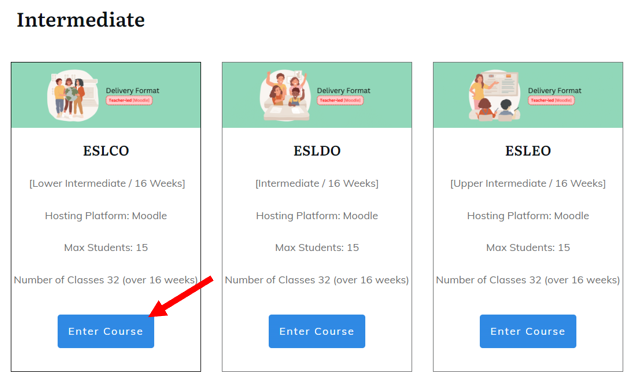
Click on the blue button that says, "Enter Course" 

Enter Course

Step 2

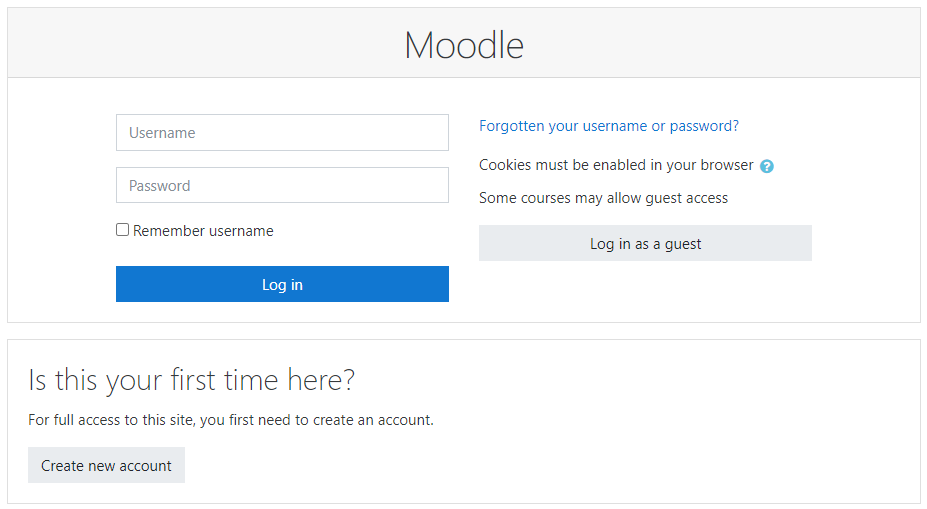
After, you will be asked to enter your Username and Password for Moodle.    


Sign in Screen


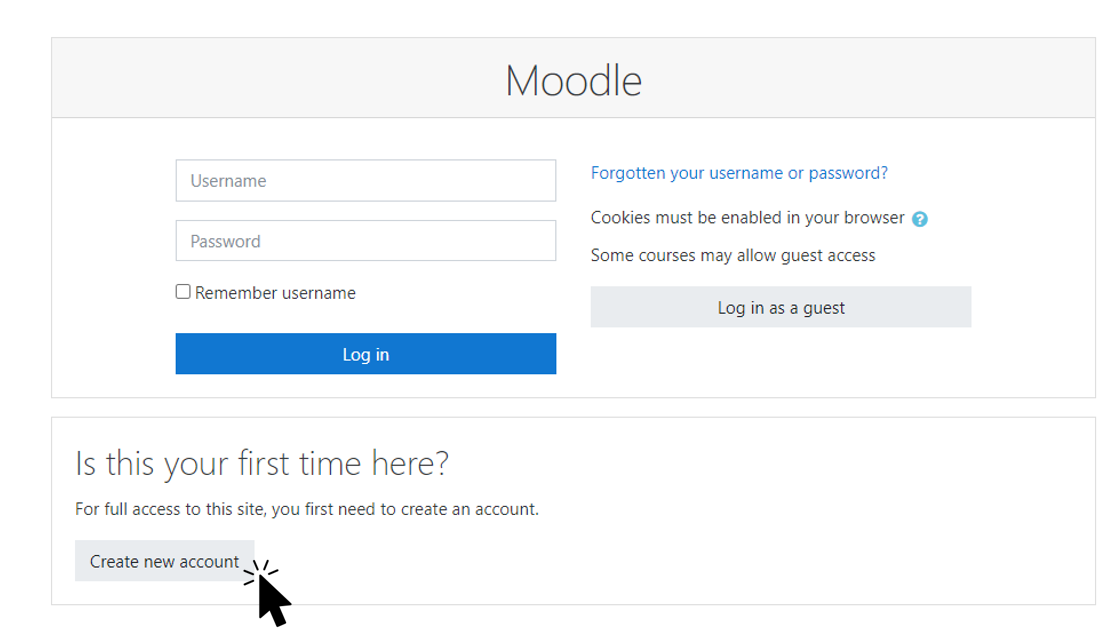
Note: If you this your first time to take a Moodle Course at Elevation English, you will need to Create new account.  


Create New Account


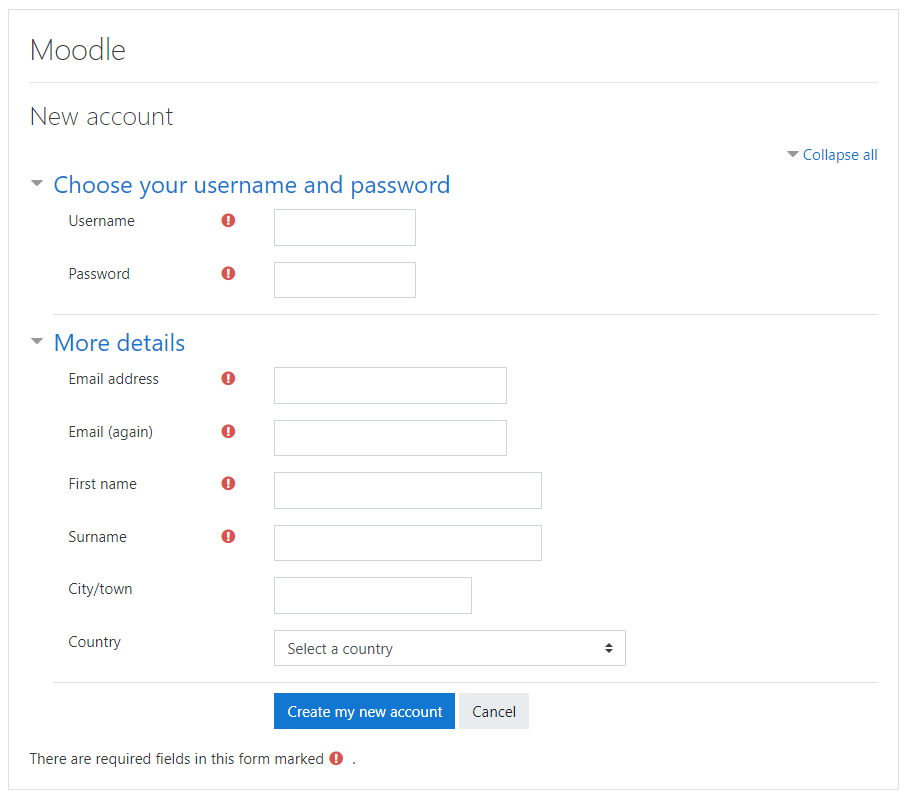
When you are finished entering your information, click on the blue "Create my new account" button


Fill Out Form


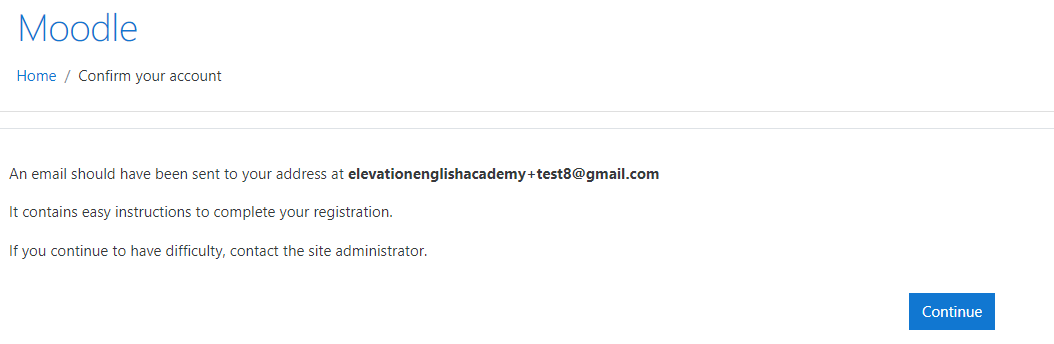
You will receive a message to check your email to confirm your new account.  


Prompt to Check Email


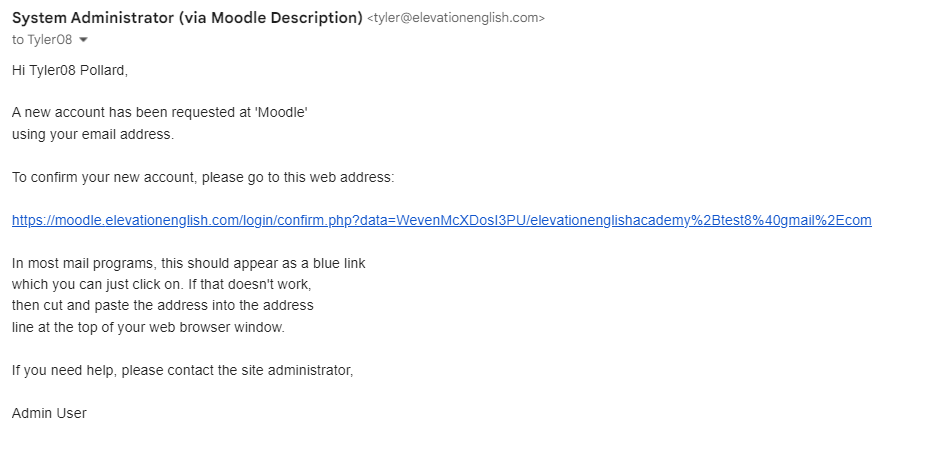
Click on the confirmation link within your email to confirm your new Moodle account.

Note:  If you do not receive this email, make sure to check your spam/junk email.   


Email from Admin


After you confirm your new Moodle account will be asked to enter your new Username and Password. After you enter this information, click on "Log in"


Sign in Screen

Step 3

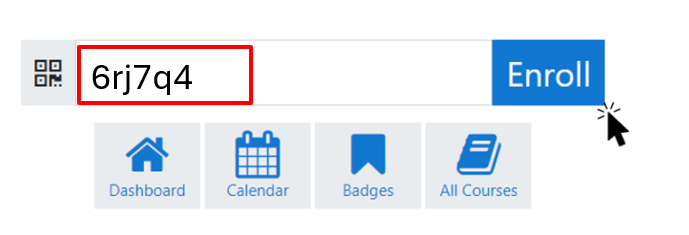
After you have successfully logged in to your Moodle account, enter the following Enrollment Key to register for the ESLCO course:

6rj7q4    


Step 4

After you enter the enrollment key, you will be taken to the ESLCO course where you can begin studying.      


Step 5

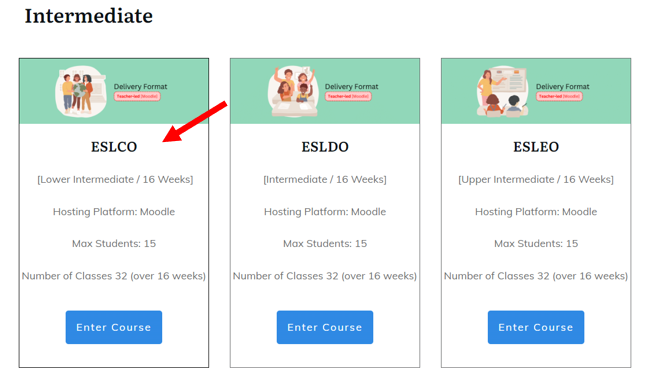
The next time you want to enter the ESLCO course you can simply: 1) Go to Courses >Teacher Led, 2) Find the ESLCO course, and, 3) Click on Enter Course.


Dropdown menu item for Teacher Led
ESLCO Course
ESLCO Enter Button

If you experience any problems entering the ESLCO course, you can send an email to:

 tyler@elevationenglish.com 

>